Create your Website.
Start with a Website kit, add your content and shape the design. Create galleries, carousels and other visuals in Creative Studio.
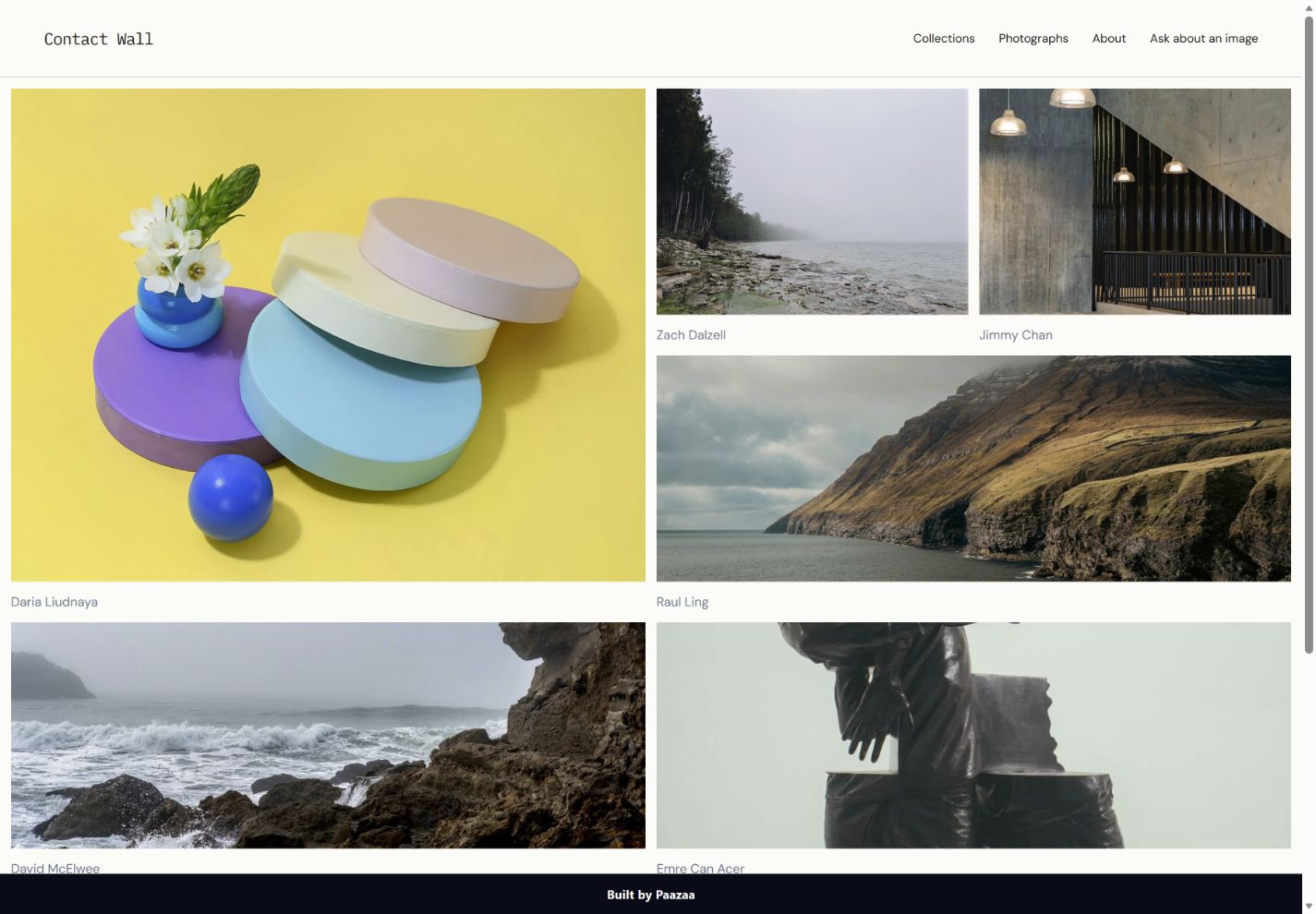
Explore Theme styles.
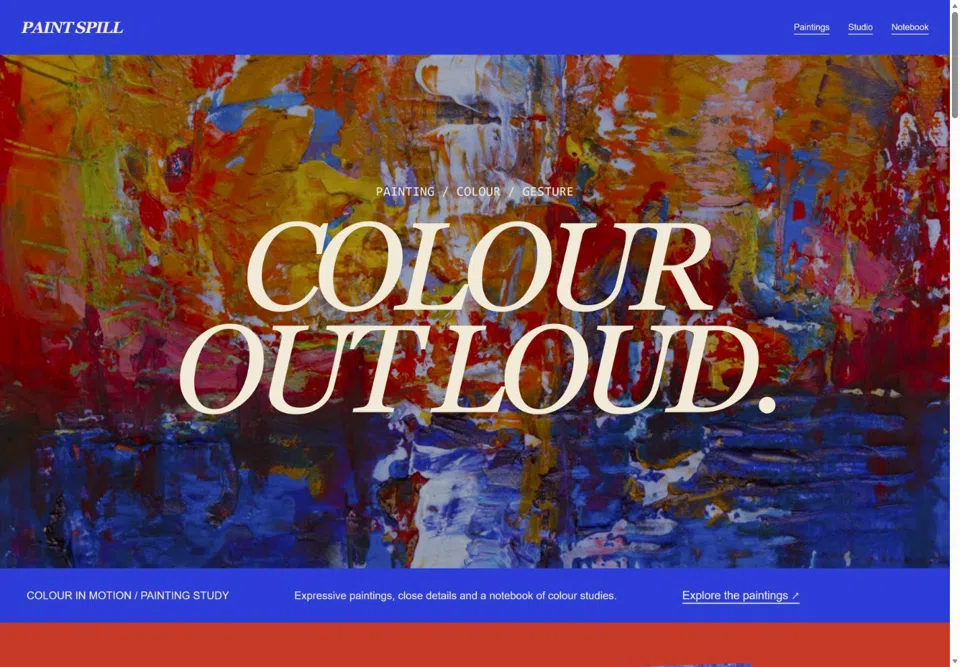
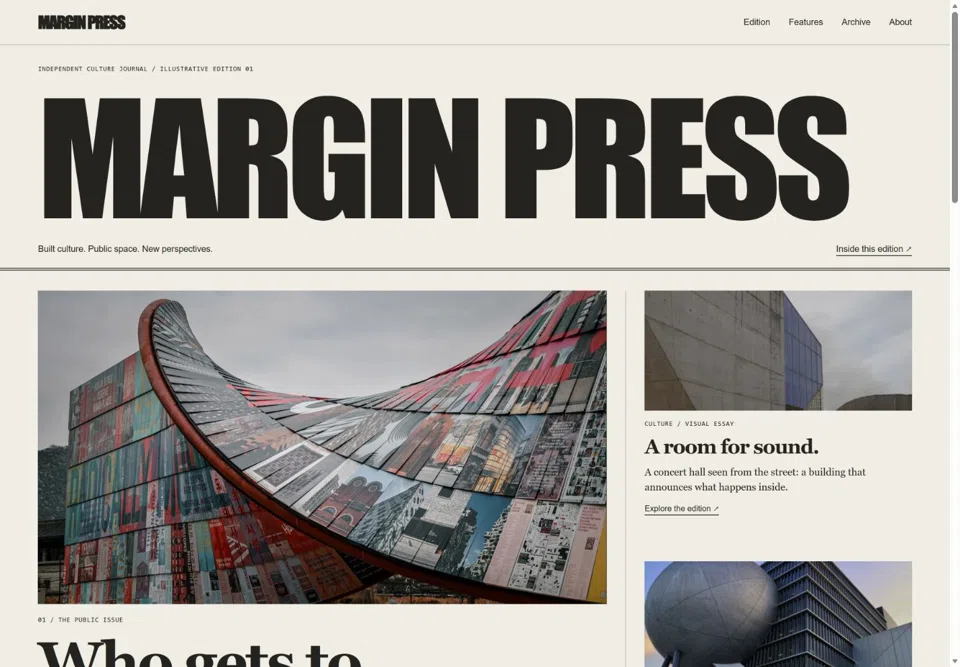
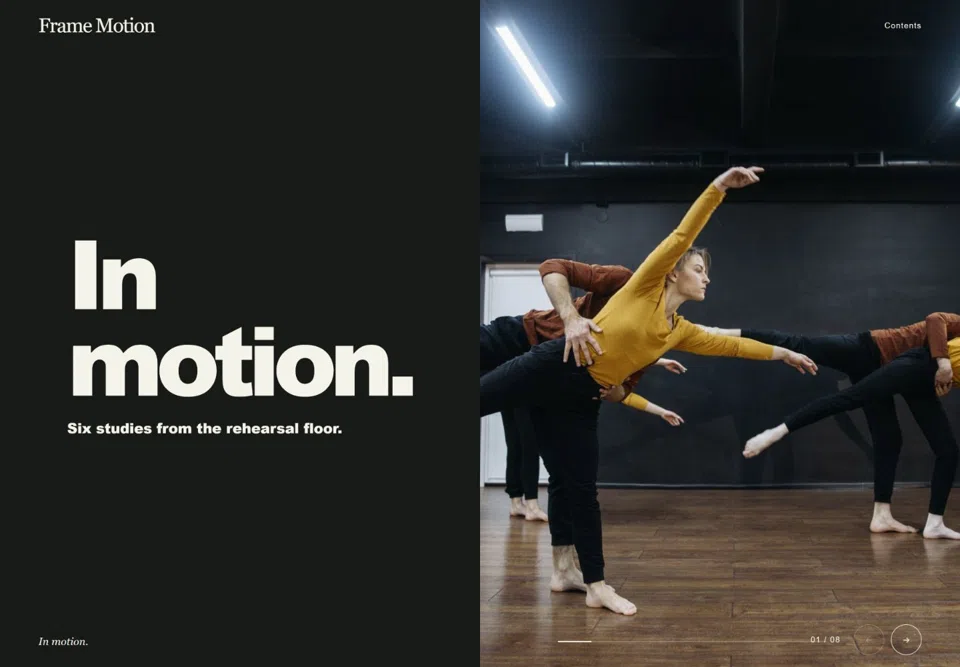
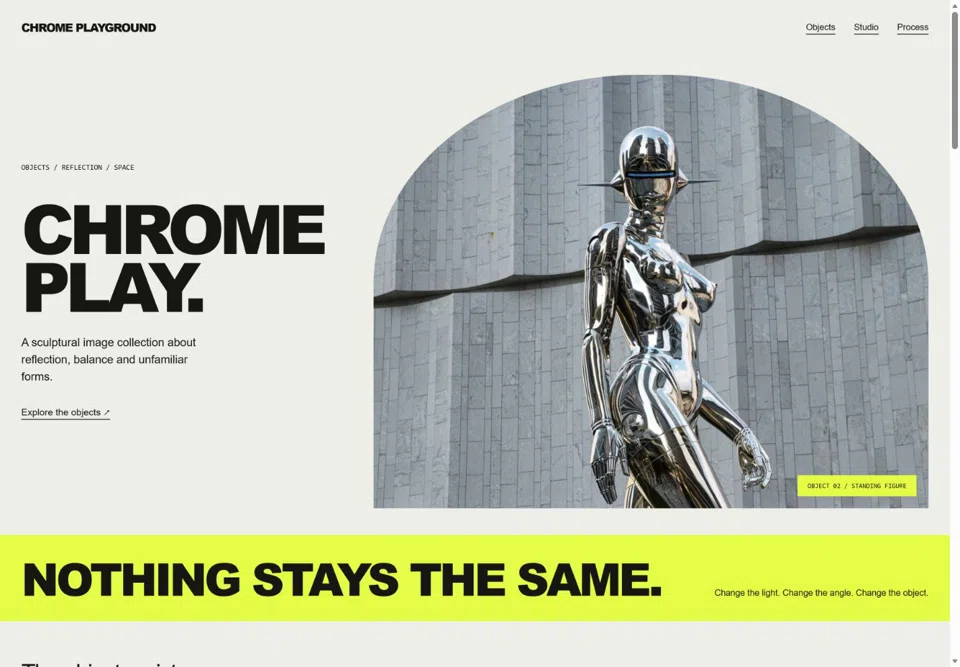
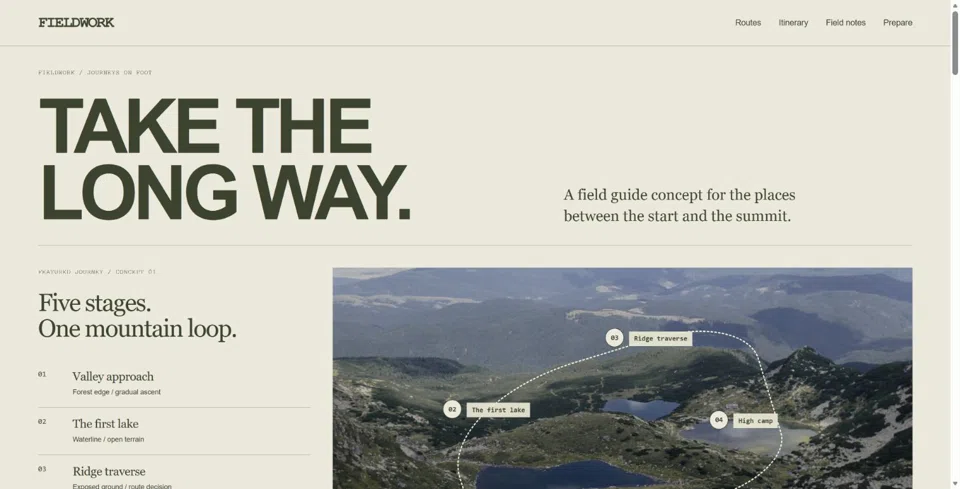
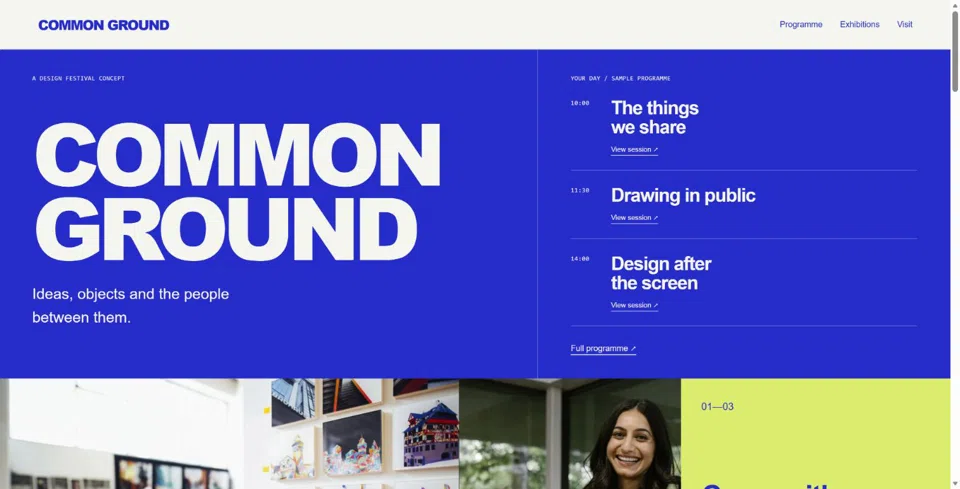
See it. Make it. Edit it.
Start with an example and follow its preparation and editing path.
Explore the Creation Library ↗Prepare your content
Check the images, crops, captions and copy the example needs.
See a build recipe ↗Shape your version
Choose design guidance, install in your Website and edit the native resources.
Explore design directions & skills ↗Edit Pages, Themes and Forms.
Edit in the native builders or ask Composer to prepare a supported change. Review the proposal before saving.
Meet Composer ↗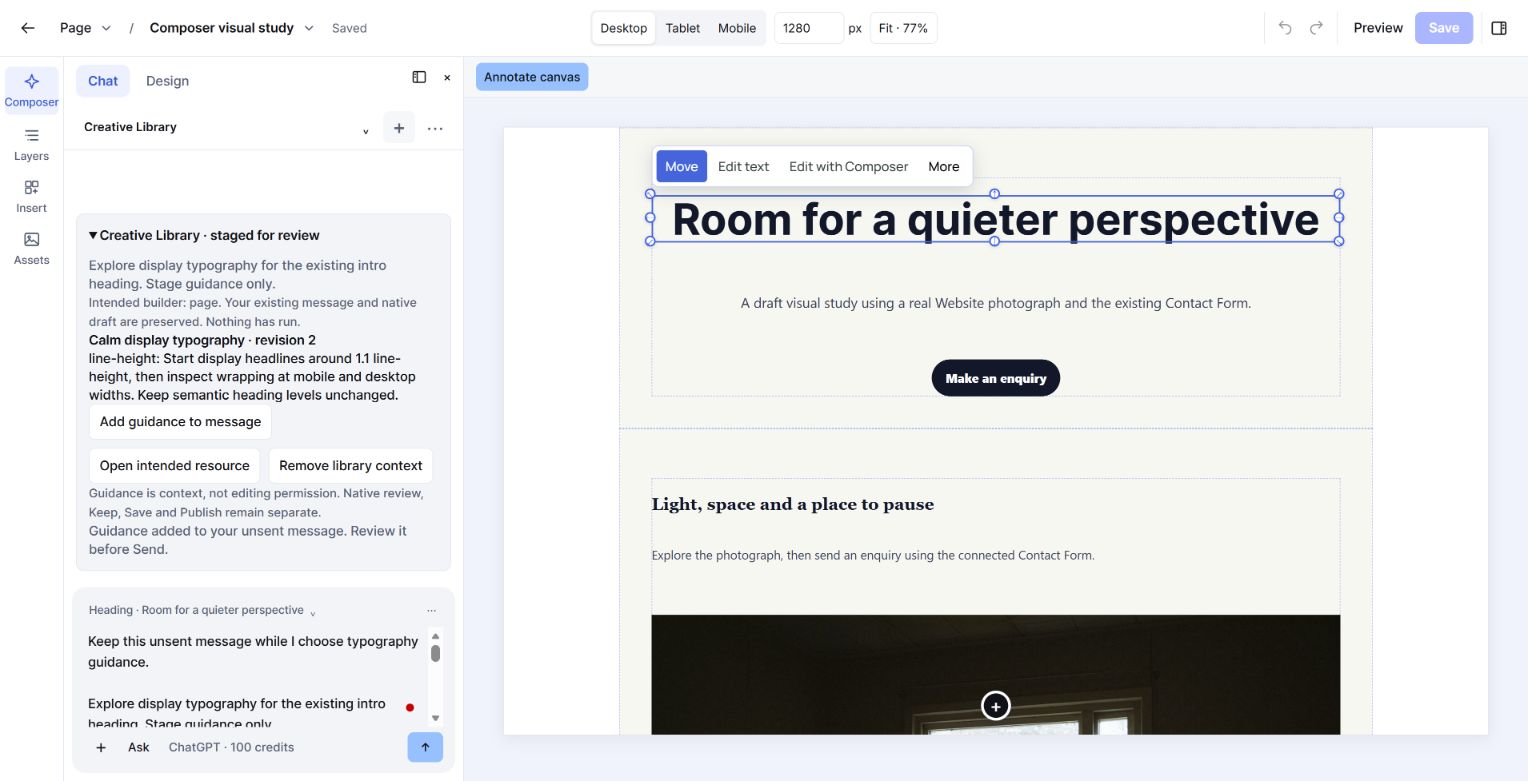
“Make this introduction shorter and keep the contact Form.”
Work on the selected Page with its purpose and connected resources in view.
Illustrative requests. Selecting an example does not run AI or change a Website.
Choose a Website type.
Compare portfolios, service Websites, publications, directories, event Websites and campaign Pages.
Selected work · Project stories · Project inquiry
Portfolio Website
Publish selected projects with detail Pages, credits and a project inquiry Form.
- Selected work
- Project stories
- Project inquiry
Website kits and reusable products
Install a Website kit, Theme, Page, Form or CMS kit. Review the product’s included resources before installing.
Browse website kits ↗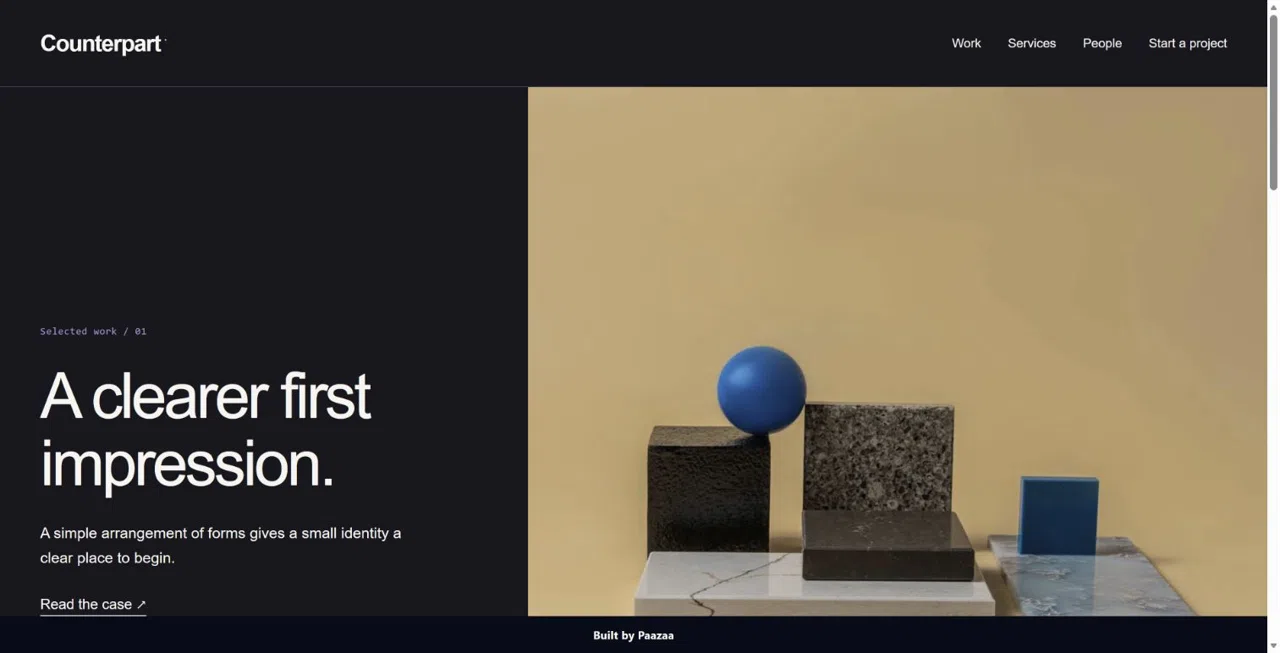
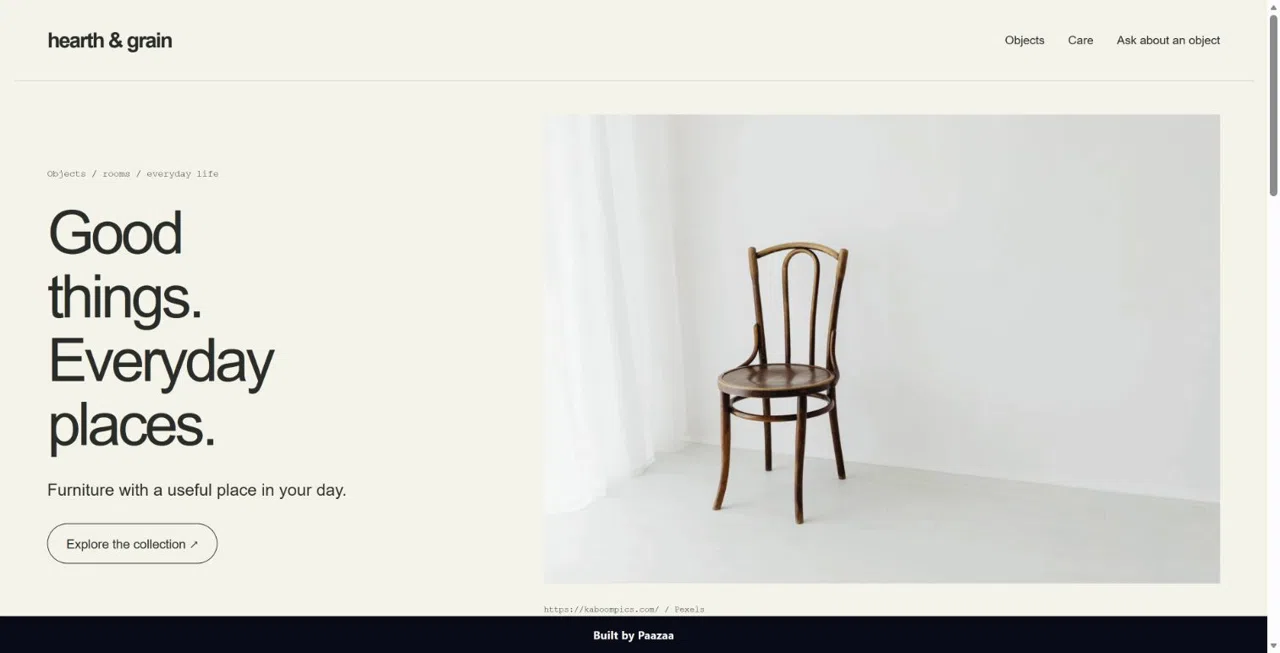
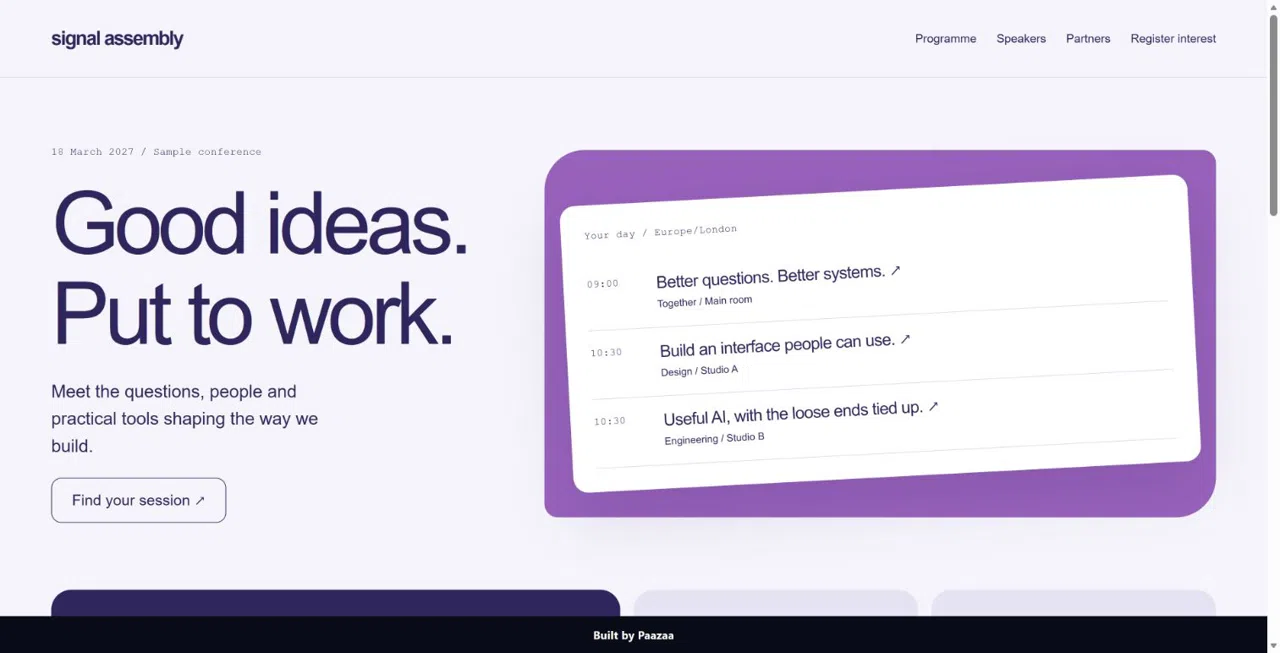
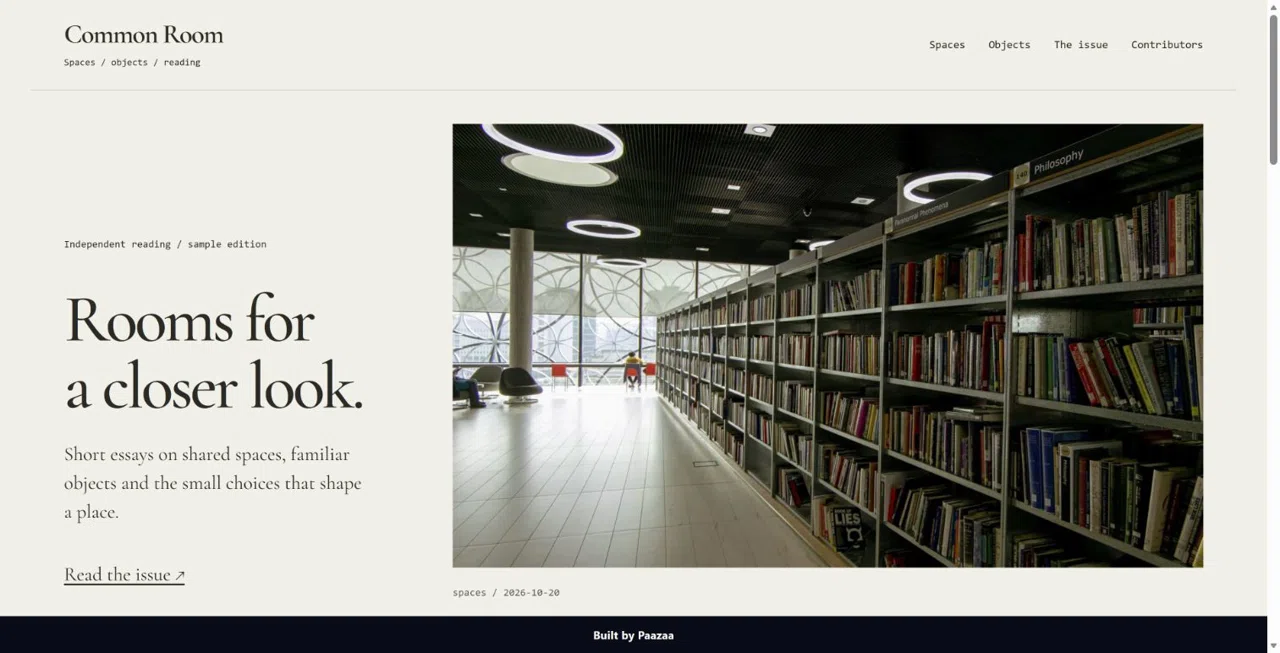
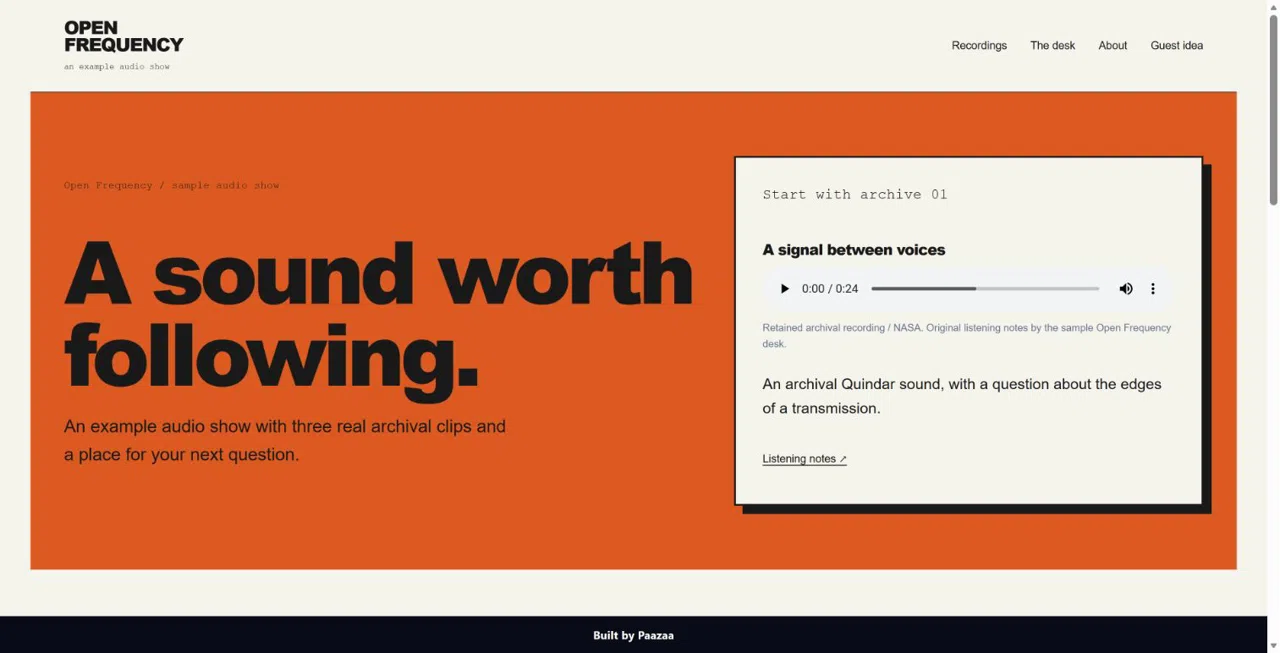
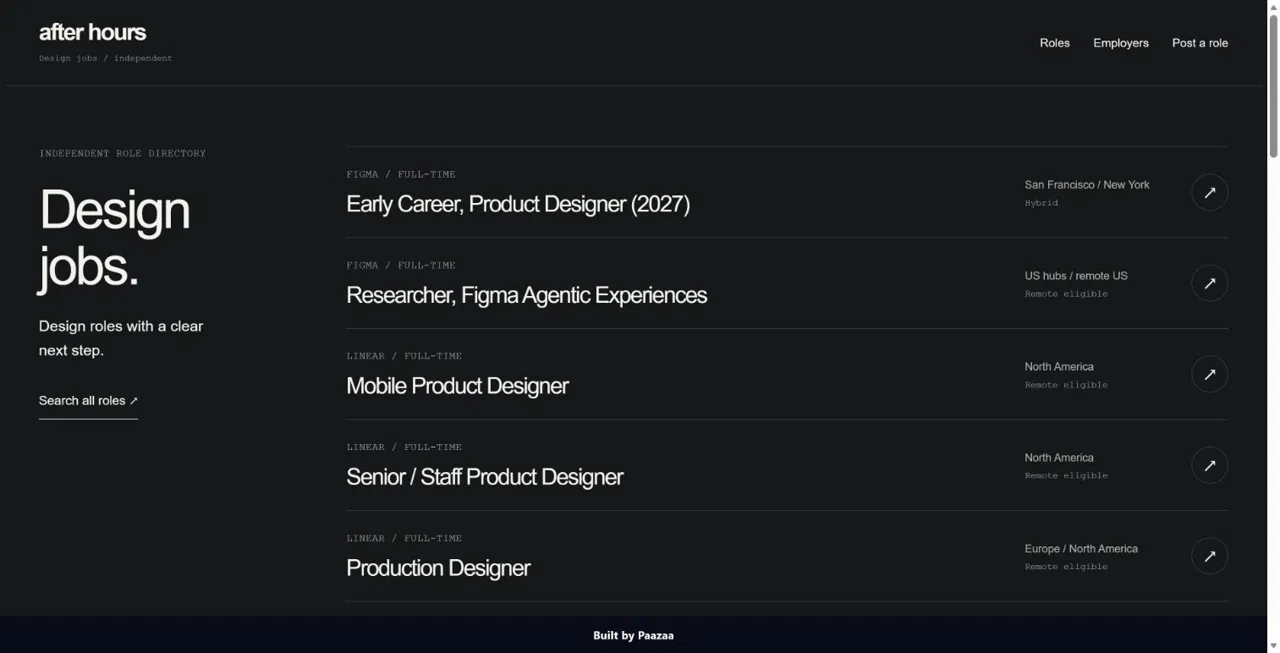
Product contents vary. Check the included resources before installing.
Art directions and compositions
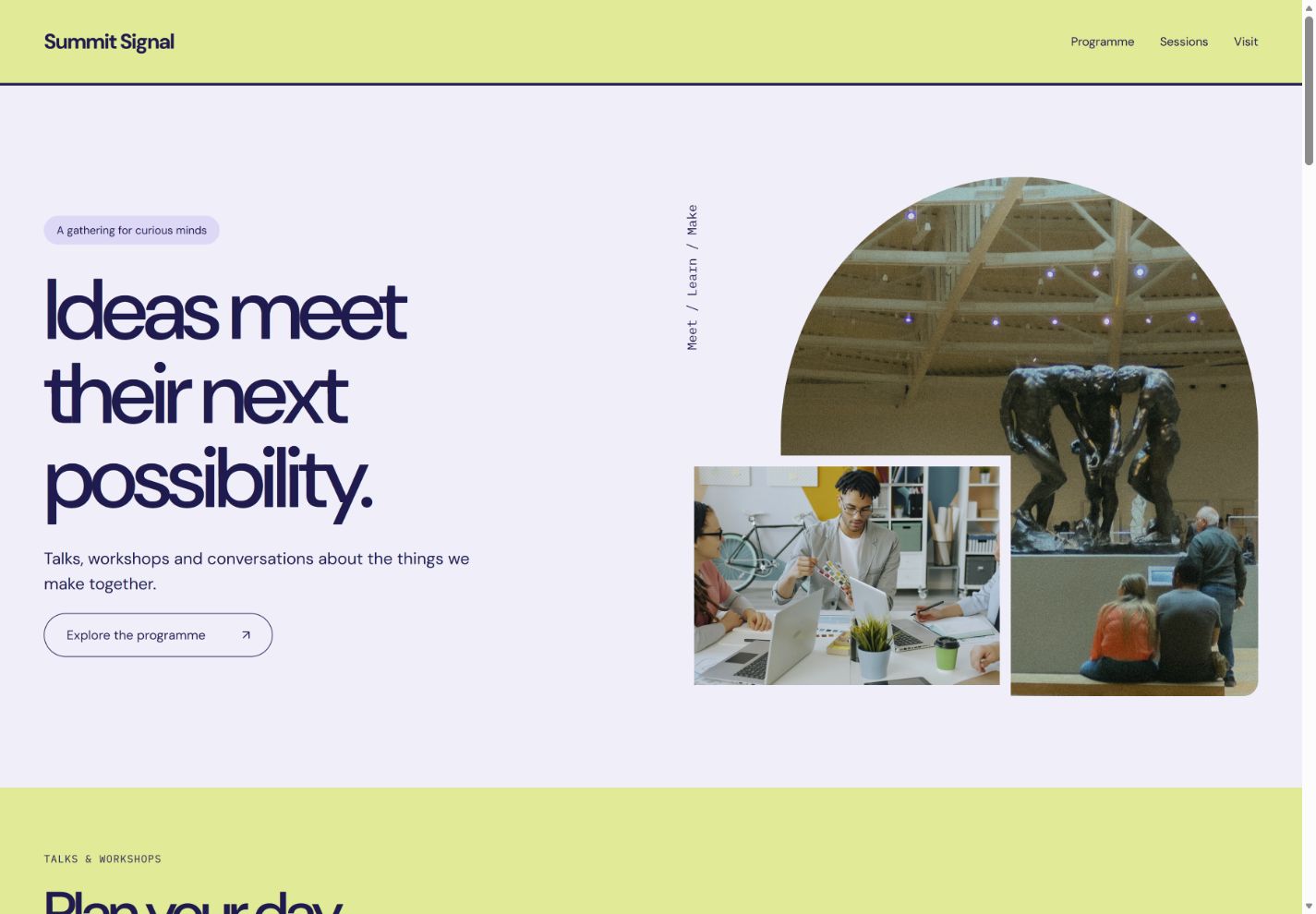
Review typography, color, imagery and layout guidance in design.md. Compare the compositions available for each direction.
Explore the Creative Library ↗- Typography
- DM Sans · IBM Plex Mono
- Design decisions
- Color, grid, spacing and imagery
- Authoring guidance
- Components and mobile layouts
Manage content with CMS.
Define content types, add Entries and connect published content to listing and detail Pages.
Explore Content & CMS ↗Artwork, artist references and exhibition details in Content
The published content presented for visitors
Custom fields
Define fields for articles, projects, products or other content.
Related Entries
Connect related Entries, such as artists, works and exhibitions.
Draft and published content
Review your changes, publish the Entry and check the connected Page.
Form layouts and logic
Build contact Forms, project briefs, feedback requests and applications. Configure fields, required answers, conditional questions and confirmation.
Explore Forms ↗Visual feedback Forms
Collect design preferences, review notes and feedback about a specific concept.
Explore this Form type ↗Review submissions under the selected Form in your Website dashboard. Tell visitors what happens after they submit.
Form layout, questions, progress and confirmation
Inspect Website connections.
Use Blueprint to inspect Pages, CMS, Forms, authoring guidance and detected relationships. Review the saved Website purpose before planning changes.
Explore connected Website building ↗Inspect native resources, saved purpose, authoring guidance and detected references
Example relationship map. Structural checks do not replace testing a live Page or submitting a Form.
Manage images and files.
Upload and select Website assets from Media. Replace images in the native editors and review their crops.
Explore Media ↗Owned assets and the native media picker
Replacement, crop and responsive presentation
Make more with your content.
Turn images and copy into galleries, carousels and illustrated stories. Save your work and place supported outputs in a Page draft.
Explore the creative tools ↗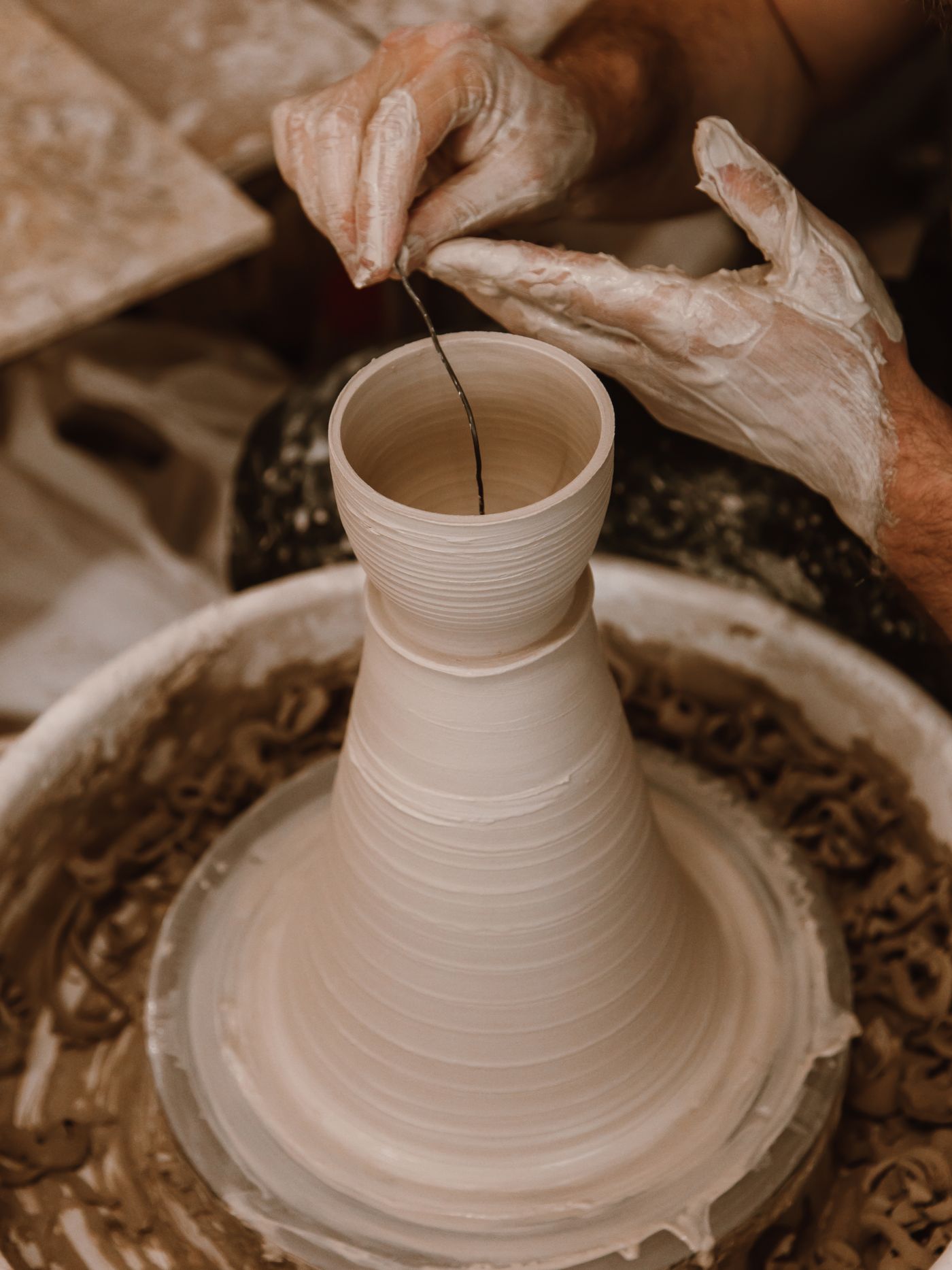
An image collection visitors can explore.
Choose your images, arrange the collection and edit its captions and filters. Save the gallery, then add it to a Page draft.
AI models and supported actions
Select compatible models for writing, image generation, editing, animation or narration inside the relevant tool.
Copy and change proposals
Draft copy or prepare a supported edit with Composer. Review the proposal before keeping it.
Explore the tools ↗Review the selected model and charge before generation. Availability depends on the tool, settings and credits.
Answer visitor questions.
Configure Ask with trusted Website sources. Review its answers and source links, and provide a contact route when needed.
Explore visitor Ask ↗Can I build without AI?
Yes. Choose a kit or work directly with the Page, Theme, CMS and Form tools. AI assistance is optional.
Source: Website building ↗Illustrative example. No live AI call runs on this page.
Manage content and responses.
Open a Website’s dashboard to edit Entries, review Form submissions and inspect Blueprint.
Preview and publish.
Check desktop and mobile layouts, links and Forms before publishing. Saved drafts remain separate from published content.
Explore publishing ↗Page layout, navigation and visitor actions
Reading order, image crops and controls
Publish Pages and content
Check the Pages and content that are ready for visitors, then use the native publishing controls.
Page titles and descriptions
Use clear Page titles, descriptions and image alt text. Review the details alongside the design.
Custom domains
Start with a Paazaa address. Connect a domain you own with a supported Website plan.
Explore domain connections ↗Create a Website in five steps.
- 01
Choose a starting point
Pick a kit or describe the Website you have in mind.
- 02
Edit the design
Refine the Theme and arrange the Pages around your content.
- 03
Add content and Forms
Replace the examples and connect the visitor’s next step.
- 04
Test the Website
Review smaller screens, follow the links and test your Forms.
- 05
Publish and update
Publish the reviewed Pages and content. Update them through the native tools.
Frequently asked questions
Can I build without AI?
Yes. Start with a kit or work directly with the Page, Theme, CMS and Form tools. Composer and creative AI actions are optional.
What is the difference between a Website kit and a Theme?
A Website kit assembles the resources listed on its product page. A Theme controls presentation, including typography, colors and shared site parts. Check each product’s contents before installing.
Can I change the design later?
Yes. Your Pages and Theme remain editable. Use the Creative Library to explore a different direction, then review the changes in the native editors.
Where do Form responses go?
Review submissions under the selected Form in your Website dashboard. Responses do not become public CMS Entries.
Does saving publish my changes?
No. Saving retains your draft. Review it and use the relevant publishing controls when it is ready for visitors.
Can I use my own domain?
Do I have to start with a complete Website?
No. You can start with a smaller set of Pages and add compatible products and content as the Website grows.
How do AI charges work?
Start a Website.
Describe the Pages, content and Forms you need, or choose a Website kit.
Or explore Website kits ↗